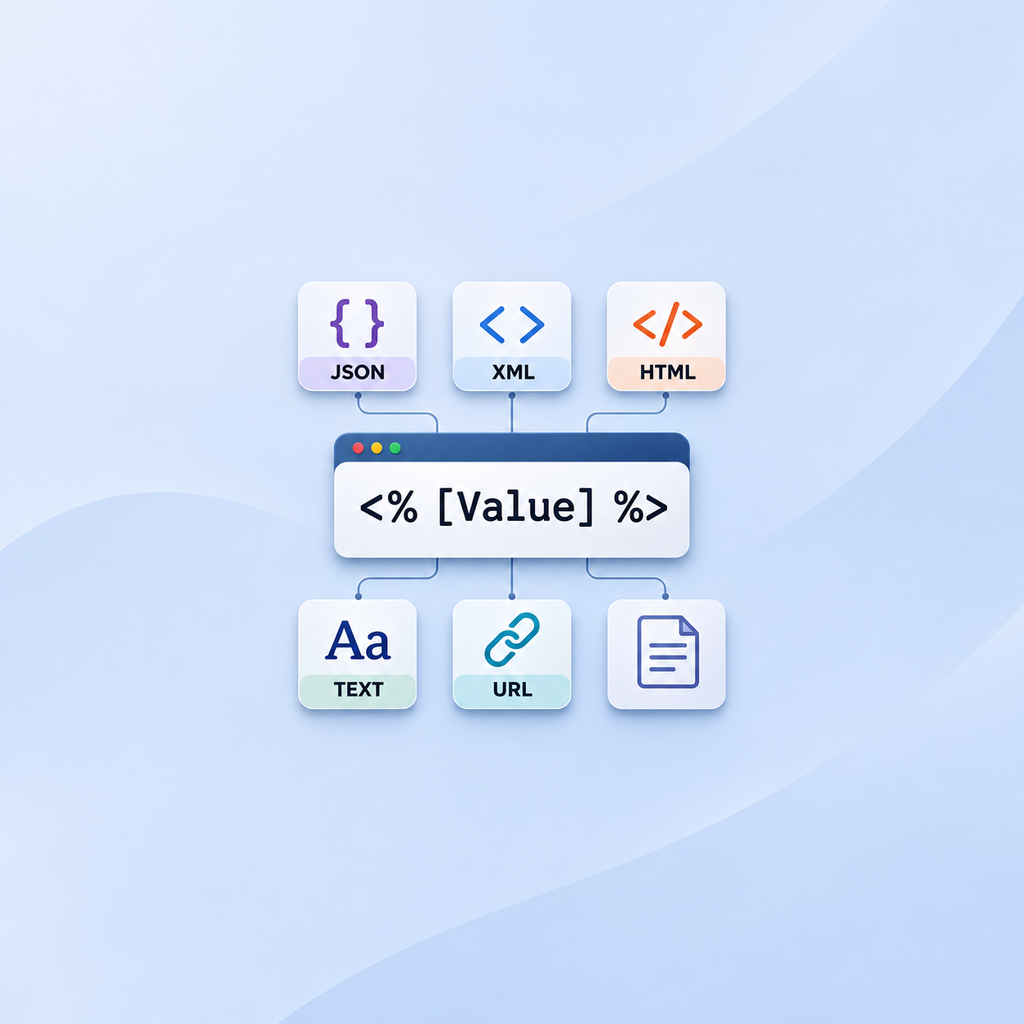
We’ve simplified how you embed expressions in Call URL requests, Navigate Actions, and Web-to-Record HTML messages. The unified syntax, <% expression %>, replaces the separate forms previously used for text and formatted values. Formatting follows the rules of each context, as explained below.
We’re also extending XHTML – Formula with conditional blocks and changing how it handles NULL values. This makes it easier to build layouts with optional content, such as a contact’s phone numbers, without a missing value causing the entire result to disappear.
One syntax for embedded expressions
Previously, Code Formulas used <% ... %> for text values and <%= ... %> for formatted values. Both now use <% expression %>. How non-text values are formatted depends on where the expression appears:
| Context | Formatting behavior |
|---|---|
| XML and JSON request bodies | Numbers, dates, times, and timestamps use standardized formatting, whether the value comes from a column or an expression. |
| URL formulas in Call URL actions and Navigate Actions | Format non-text values explicitly to match the receiving server’s requirements. |
| Headers and form data | Continue to format non-text values explicitly. These contexts have never supported formatting blocks. |
| Web-to-Record HTML messages and Call URL plain-text request bodies | Automatic formatting is retained when the block contains only a numeric, date, time, or timestamp column reference. |
In URL formulas, the receiving server determines the required format. A column’s display format in TeamDesk may not match that requirement, so formatting must be explicit.
For Web-to-Record HTML messages and plain-text request bodies, automatic formatting applies only to a single column reference. If the block contains a more complex expression, format its result explicitly.
What happens to existing formulas?
You do not need to rewrite existing formulas manually. The editor automatically translates the old syntax when you open a formula.
To preserve identical output in existing URL formulas, the editor converts formatting blocks such as <%=[Column]%> to <%Format([Column])%>. The formatting is now explicit, but the resulting value stays the same.
You can also paste formulas that use the old <%= ... %> syntax, including copies saved outside TeamDesk. When you save them, the editor converts them to the unified <% expression %> syntax.
Why were there two syntaxes?
The distinction originated in XHTML – Formula. The <% ... %> block inserted encoded text, while <%=[Column]%> produced a readable representation of a numeric, date, time, or timestamp column. Behind the scenes, the formatting block called Format(), using the column’s Format property.
This syntax was later reused in Call URL actions and extended to other request formats. Navigate Actions and Web-to-Record form redirects also use the URL formula syntax. The unified syntax removes the need to choose between two forms while retaining the formatting rules appropriate to each context.
More flexible XHTML formulas
XHTML – Formula was originally designed to let database administrators format and highlight values. For example, this formula displays an error message in red:
<span style="color:red"><%[Error Message]%></span>Under the previous rendering rules, XHTML – Formula combined its output using the & concatenation operator. If [Error Message] was NULL, the entire result became NULL. This was useful for simple formatting, but made more complex layouts difficult: a single missing value could hide everything.
XHTML – Formula now follows the same rendering rules as other Code Formulas: a NULL placeholder produces an empty string instead of making the entire result NULL. Conditional blocks let you control whether the surrounding markup is included.
For example, a contact’s mobile, home, and work phone numbers can each have their own conditional row:
<table>
  <%? [Mobile Phone] %>
    <tr><td>M:</td><td><% [Mobile Phone] %></td></tr>
  <%?%>
  <%? [Home Phone] %>
    <tr><td>H:</td><td><% [Home Phone] %></td></tr>
  <%?%>
  <%? [Work Phone] %>
    <tr><td>W:</td><td><% [Work Phone] %></td></tr>
  <%?%>
</table>
To preserve the behavior of the original error-message example, explicitly check for NULL before including the span:
<%? not IsNull([Error Message]) %>
  <span style="color:red"><%[Error Message]%></span>
<%?%>
Keeping existing output compatible
No immediate changes are required for existing XHTML formulas. The editor automatically wraps the old formula in a conditional block that checks its placeholders for NULL, preserving the previous output.
You can then review the generated condition and adapt the formula to use more targeted conditional blocks, such as the individual phone rows above.