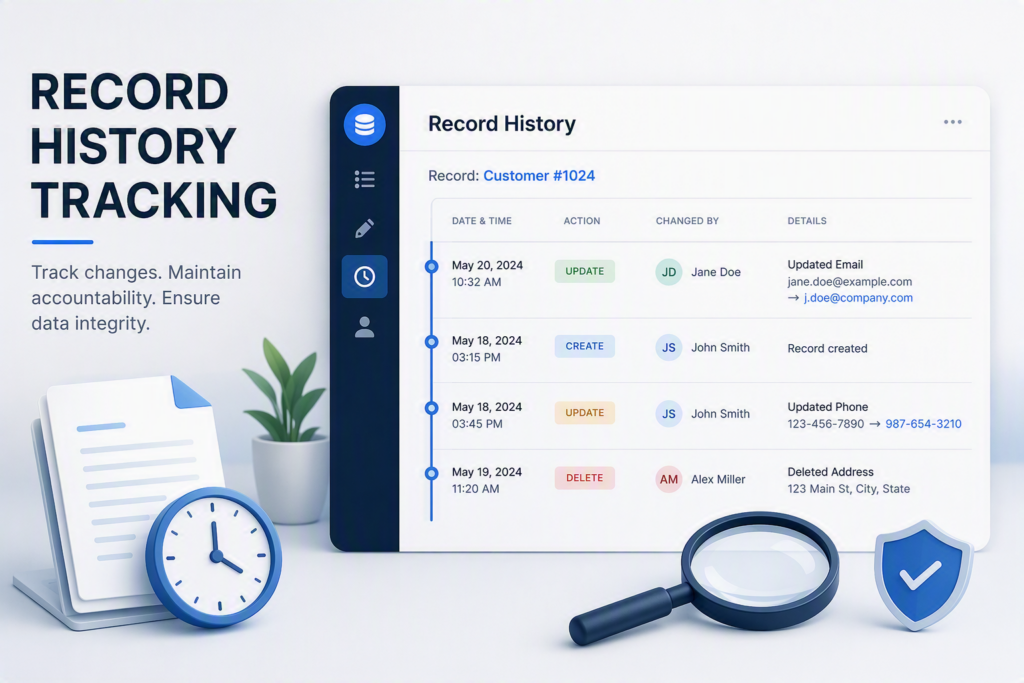
Column history tracking in TeamDesk — logging every change to specific fields like Status, Owner, or Amount — isn’t a built-in feature, so most teams either skip it or bolt on a third-party audit trail.
Watching AI work through the problem was a good reminder that column-history tracking is a solved pattern. Here’s the recipe.
Step 1: A dedicated History table, scoped to only the tracked columns
Let`s build the History Tracking of three fields (Status, Owner, Amount) for the Projects table. Instead of dumping the whole record into a generic “Audit Log” table, it created Project History, with:
- a Reference column back to the source table (Source Record, pointing at Projects),
- one column per tracked field, holding the new value at the moment of change (Status, Owner, Amount),
- a Date/Time column (Changed On), stamped automatically.
Just the three fields someone asked to track — nothing more. That keeps the trigger cheap and the history feed readable.
Step 2: A Record Change Trigger, scoped the same way
On the Projects table, it added a Record Change Trigger (type Modified), matching only those three columns. TeamDesk only lets you match on physical columns here, which conveniently keeps the scoping consistent.
The trigger’s action was a Create Record targeting Project History:
- Get Values From: the current record
- Execute Triggers: No, to avoid the new row cascading into anything
- Assignments:
[Status]→[Status],[Owner]→[Owner],[Amount]→[Amount],[Record ID]→[Source Record],Now()→[Changed On]
Now every change to a watched column drops a snapshot into Project History. Useful on its own — but a row that only holds the new value can’t say what changed from.
Step 3: Getting the “before” values
Rather than capturing the old value when the record was written, it derives it from the history records themselves. A self-relating many-to-many link on Project History, matched by Source Record, allows each history row to access all other history rows for the same project. A summary identifies the history row immediately preceding the current one based on Changed On. Three additional Summary columns — Previous Status, Previous Owner, and Previous Amount — then retrieve the corresponding values from that preceding history row.
Now each row has two parallel sets of columns: the new values, and what they used to be. Everything downstream is just formulas over those six columns.
Step 4: Surfacing the diff
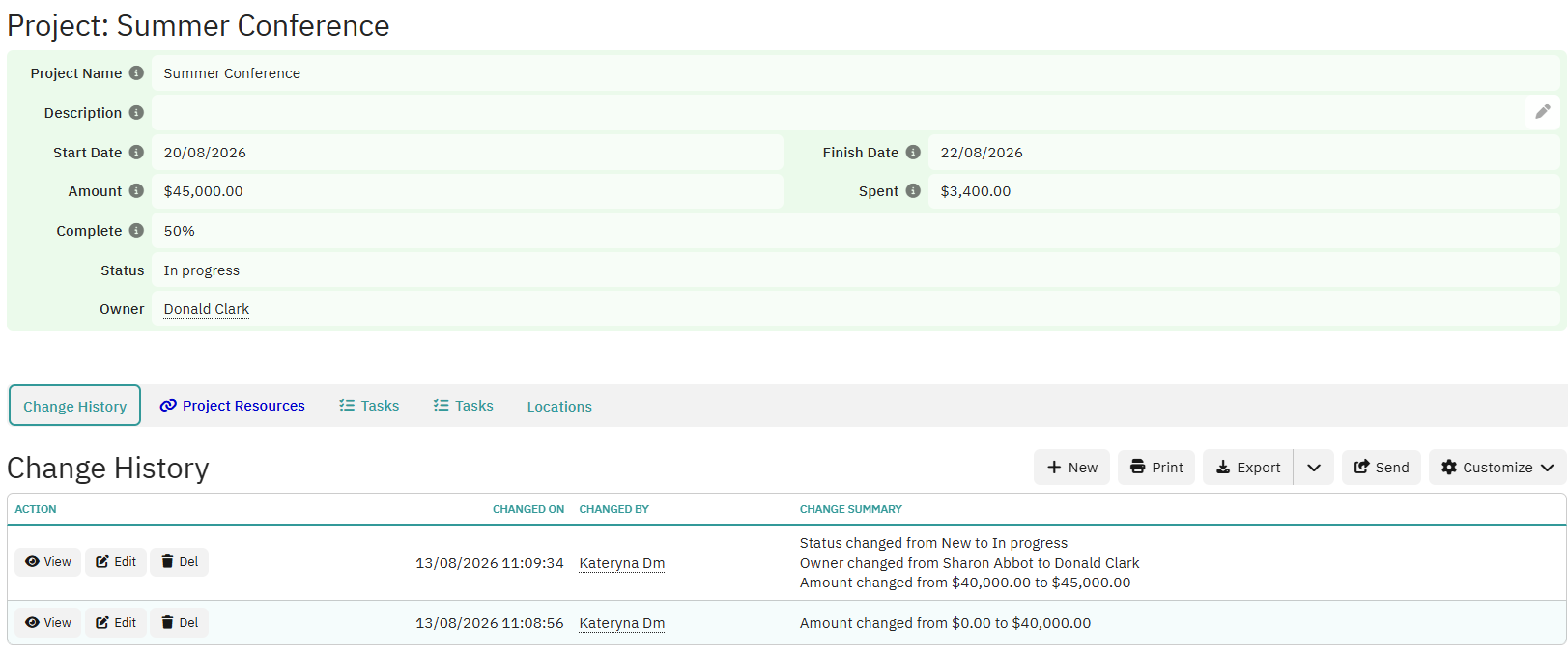
Variant A — a one-line summary. A Formula column for a history feed or timeline:
List("\n",
If(Nz([Status])<>Nz([Previous Status]), "Status changed from " & Nz([Previous Status]) & " to " & Nz([Status])),
If([Amount]=[Previous Amount], null, "Amount changed from " & Format([Previous Amount]) & " to " & Format([Amount])),
If([Owner]=[Previous Owner], null, "Owner changed from " & [Previous Owner] & " to " & [Owner]),
)
List() joins only the pieces that changed, so a row where just Status moved reads as “Status changed from Negotiation to Won” — nothing more. Good for scrolling a change log like a sentence.
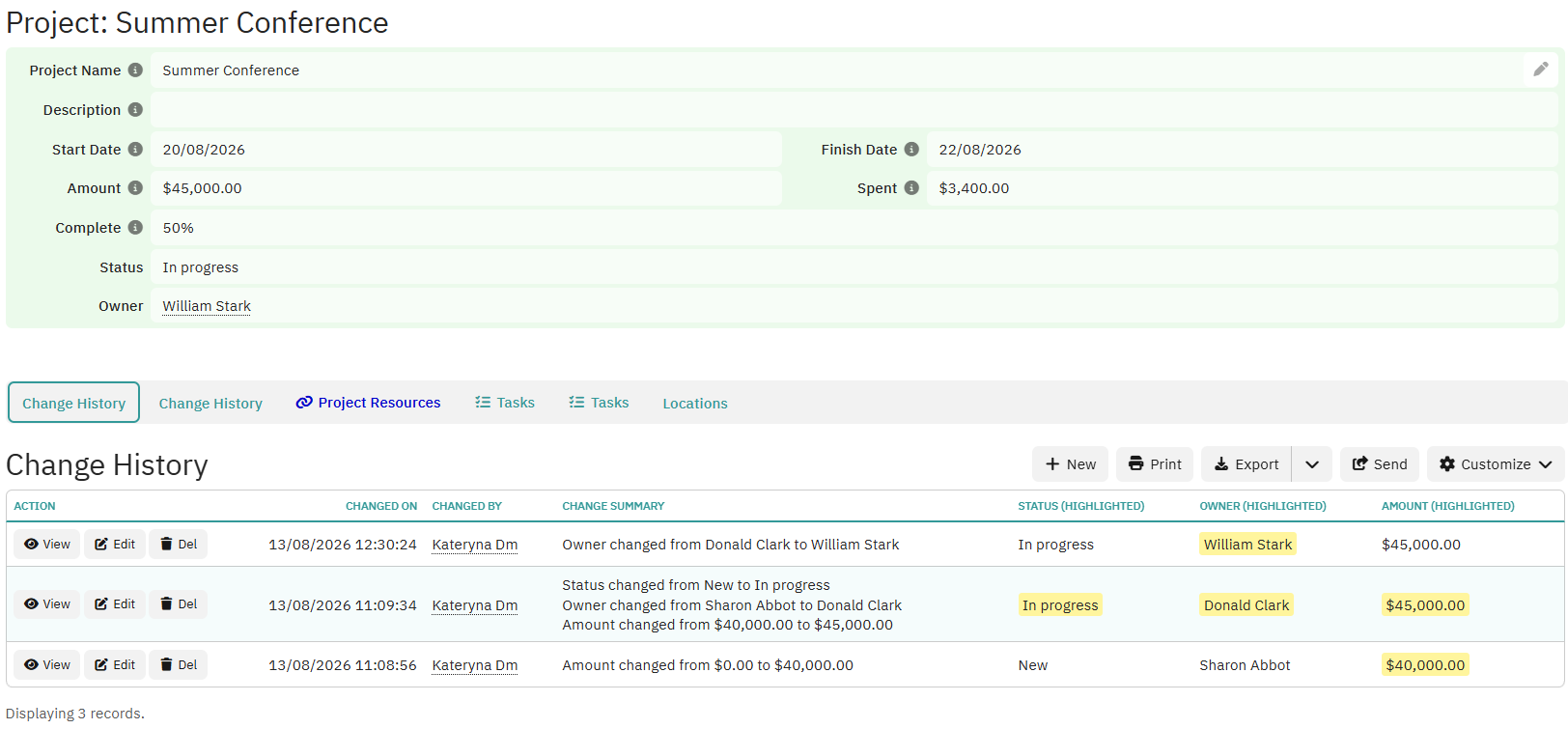
Variant B — per-column highlighting. For each tracked column, a Formula-XHTML column instead of a plain Formula column, e.g. a “Status (highlighted)” column:
<span style="<% If([Status] <> [Previous Status], "background-color: yellow", "") %>">
<% [Status] %>
</span>
Formula-XHTML lets you embed formula code inside <% ... %> markers within an HTML tag’s attributes or content — you can’t generate tags dynamically, but you can absolutely drive a style attribute from a condition. Repeat this for Owner and Amount, drop all three into the record’s Details view, and every field that moved lights up yellow at a glance, with no sentence to parse. This is the better choice for a details page where someone wants to compare an old snapshot to a new one visually, rather than read a narrative.
When to use which
The two variants aren’t competing — they’re answering different questions. The summary sentence is for “what happened, in order” — a timeline, an activity feed, a notification body. The per-column highlight is for “what’s different about this specific record right now” — a side-by-side comparison, a details panel, a QA review screen. Most builds end up wanting both: the sentence on a shared activity table, the highlight on the record’s own detail layout.
It’s also worth keeping the scoping discipline from Steps 1–2 as you extend this pattern. Every extra tracked column means another pair of Lookup columns and another branch in the formulas above — there’s no cost to your existing data, but it’s easy to let “just track everything” creep back in. Naming the columns you actually care about, once, at the start, is what keeps the whole thing legible six months later.
What’s notable isn’t that any single piece here is exotic — Reference columns, Record Change Triggers, Lookup columns, and Formula-XHTML are all standard TeamDesk building blocks. What’s notable is the sequence: capture first (trigger + Create Record, scoped tight), then relate (self-join for “previous”), then present (formula, in two different shapes for two different audiences).
Ready to Use Prompt – Just Copy!
Below you can find the prompts ready for your use. Just specify the name of the table and the fields that you want to track at the very beginning of the first prompt.
The whole setup consists of 3 prompts. The second part for implementing how your changes will be displayed has two options – a general formula-text column that holds all the changes or a XHTML-version with the breakdown, where each changed field is highlighted in color.
Part 1 – History Table
Source table: [INSERT YOUR TABLE NAME]
Tracked Fields: [LIST THE FIELDS SEPARATED BY COMMA]

Goal: Automatically record a history entry every time any tracked field changes on a record in the source table, including the previous value of each tracked field and a one-line, human-readable summary of what changed. Follow the steps below in order.

1. Create the history table
Create a new table named after the source table, with "History" appended (e.g., Projects History).

2. Relate it to the source table
Create a one-to-many relation from the history table to the source table, so each history row references one source record. Have it show up on the source table's form as a detail view called Change History.

3. Add columns to the history table
A reference to the source table (created automatically by the relation above).
Changed On — date/time field, default value = current date/time.
Changed By — default value = current user.
One column per tracked field, each matching the type of the corresponding field on the source table. Each of these holds the value of that field at the time the change occurred.

4. Self-relation to find the previous history row
Create a many-to-many self-relation on the history table, matched so that a row's source-record reference equals the other row's source-record reference.
Using that relation, add an Index summary column Previous History Record that returns the single immediately-preceding row:

Filter: [Changed On] < Related[Changed On]
Sort: Changed On descending
Return record #1

Then, for each tracked field, add another Index summary column named Previous <field name> (following the same pattern for every tracked field), using that same relation and the same filter/sort logic described above, but returning the value of that specific field from the matching row instead of the whole record.
Part 2 – Option 1: Change Summary
5. One-line change summary

Build a "Change Summary" formula-text column for the same tracked fields.

For each field X, assume columns [X] (current) and [Previous X] (prior value) already exist. Create one If(...) entry per field using the matching rule below, then join all entries with List("\n", entry1, entry2, ...) so unchanged fields (which return null) are automatically skipped.

- Date/DateTime fields: compare with Nz([X],#1900-01-01#)=Nz([Previous X],#1900-01-01#); display blanks as the word "blank" via If(IsNull([X]),"blank",Format([X])) on both sides.
  Entry: If(Nz([X],#1900-01-01#)=Nz([Previous X],#1900-01-01#), null, "X changed from " & If(IsNull([Previous X]),"blank",Format([Previous X])) & " to " & If(IsNull([X]),"blank",Format([X])))

- Number/Currency/Percent fields: compare directly with [X]=[Previous X]; display with Format().
  Entry: If([X]=[Previous X], null, "X changed from " & Format([Previous X]) & " to " & Format([X]))

- Text/single-select fields: compare with Nz([X])<>Nz([Previous X]) (Nz defaults to "" for text); display with Nz([X])/Nz([Previous X]).
  Entry: If(Nz([X])<>Nz([Previous X]), "X changed from " & Nz([Previous X]) & " to " & Nz([X]))

- Reference/lookup fields: compare directly with [X]=[Previous X]; display the field values directly, no Format()/Nz() needed.
  Entry: If([X]=[Previous X], null, "X changed from " & [Previous X] & " to " & [X])

Apply the matching rule per field's type, then wrap all entries in List("\n", ...) as the final formula.
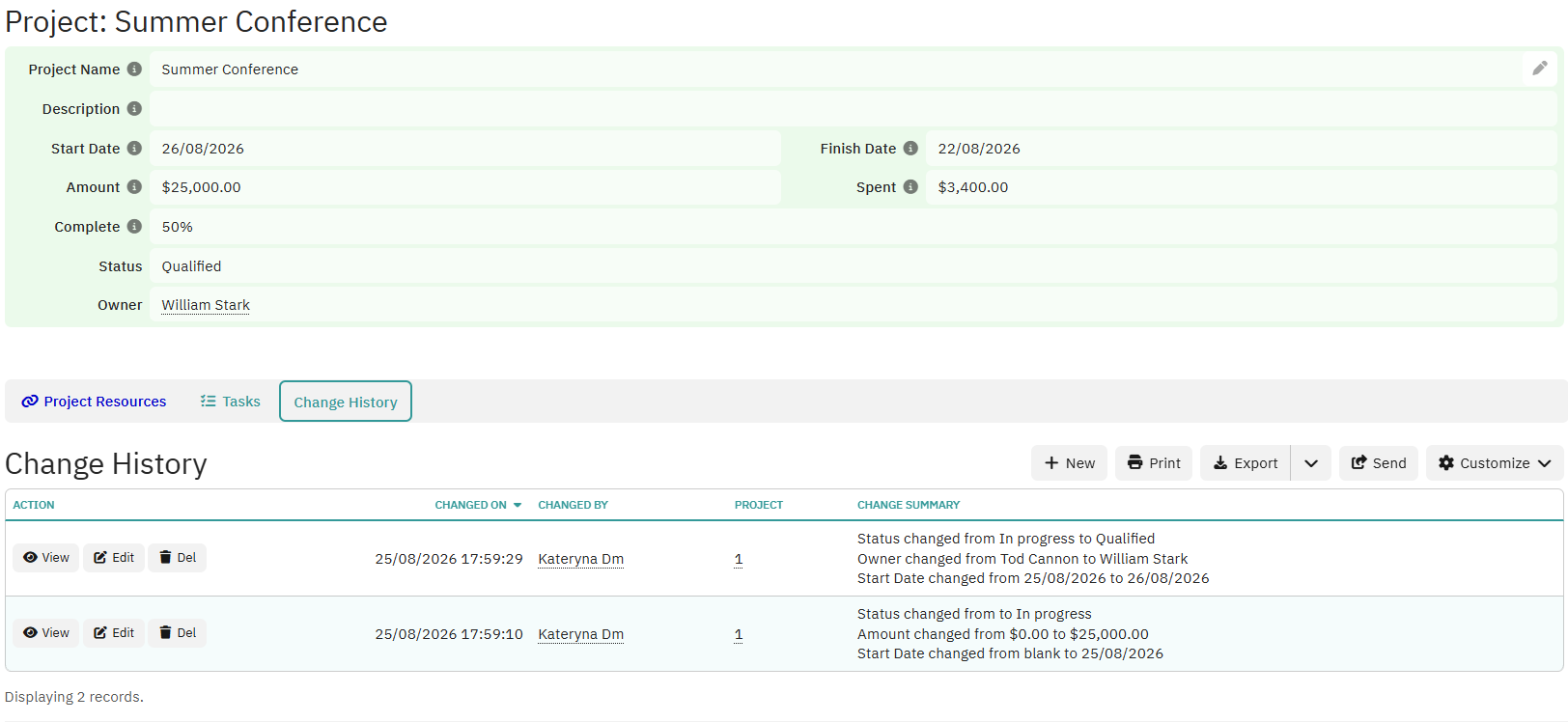
Part 2 – Option 2: Change Summary XHTML version
Per-column highlighting (Formula-XHTML)

For each tracked field, add a Formula-XHTML column (not a plain Formula column) that renders the current value highlighted whenever it differs from the previous value:

Status (highlighted):
<span style="<% If([FIELD NAME] <> [Previous FIELD NAME], "background-color: #fff59d; padding: 2px 4px; border-radius: 3px", "") %>">
<%= [Status] %>
</span>

Use the <%= [Column] %> shorthand for the displayed value and the stronger highlight style (background-color: #fff59d; padding: 2px 4px; border-radius: 3px), not plain background-color: yellow.
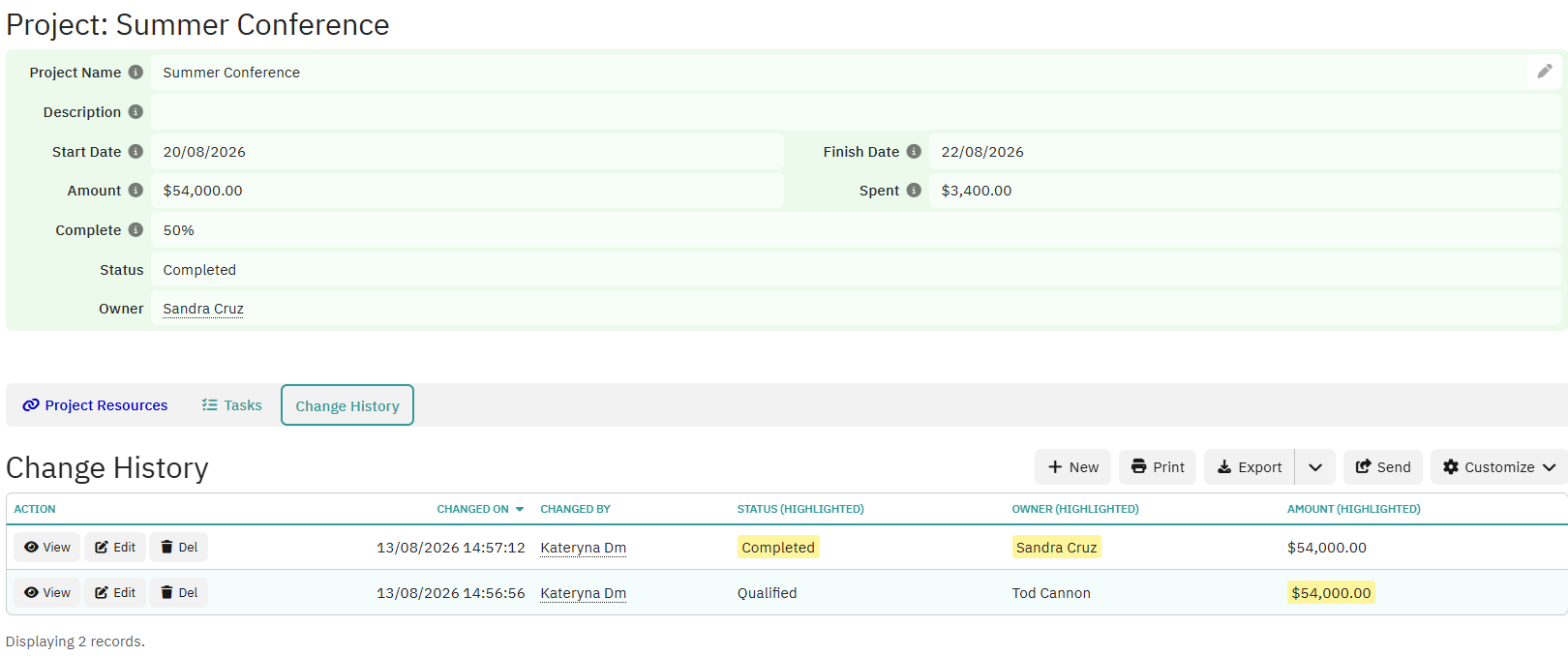
Part 3 – Add Triggers and Cleanup
6. Workflow: trigger + action
Create a Record Change Trigger on the source table, firing whenever any of the tracked fields is modified.

Create a Record Create workflow action attached to that trigger, targeting the history table, assigning:

The reference to the source table = this record.
Changed On = current date/time.
Changed By = current user.
Each tracked field's history column = that field's current value on the source record.

No assignment is needed for the "previous value" columns, Previous History Record, or Change Summary — those are all computed automatically by the Index summary and Formula columns.

7. Views and form cleanup
Set the history table's default view to sort by Changed On descending, showing: Changed On, Changed By, the source table reference, and Change Summary.
Point the source table's Change History detail view at this same view, so it inherits the sort order and column set.
On the history table's form, mark the following as helper/internal fields (or hide them), since end users generally only need to read Change Summary: Previous History Record, and each "previous value" column from step 4.