Then the chat ends, and all that work goes with it. Unless you save it as one of your data analysis prompts, it’s gone. Next quarter, you start from scratch. A colleague who wants the same report has to rediscover every correction you made. Nobody remembers exactly how the numbers came out last time.
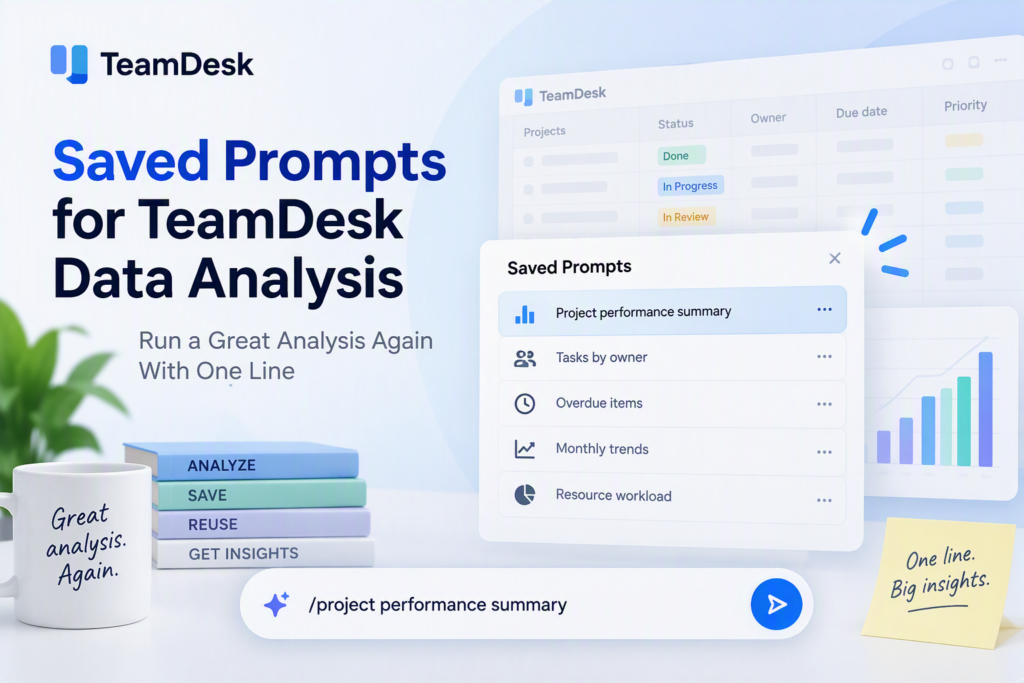
A small pattern fixes this. You save the finished analysis as a prompt in a dedicated TeamDesk table. From then on, anyone can open Data Analysis and type the prompt’s name. The AI finds the saved recipe and rebuilds the same report, with the same grouping, metrics, and rules.
How saved data analysis prompts fit together
The setup has three parts. The first is a Prompts table that stores each saved analysis as a record. The second is a short instruction in the Data Analysis resource file that tells the AI to check that table first. The third is the prompts themselves, which the AI writes for you at the end of a finished analysis.
None of this needs scripts or form changes. It relies on how TeamDesk Data Analysis already works. Every table gets resource files with instructions that shape how the AI analyzes its data. We add one more instruction to that set.
Step one: create the Prompts table
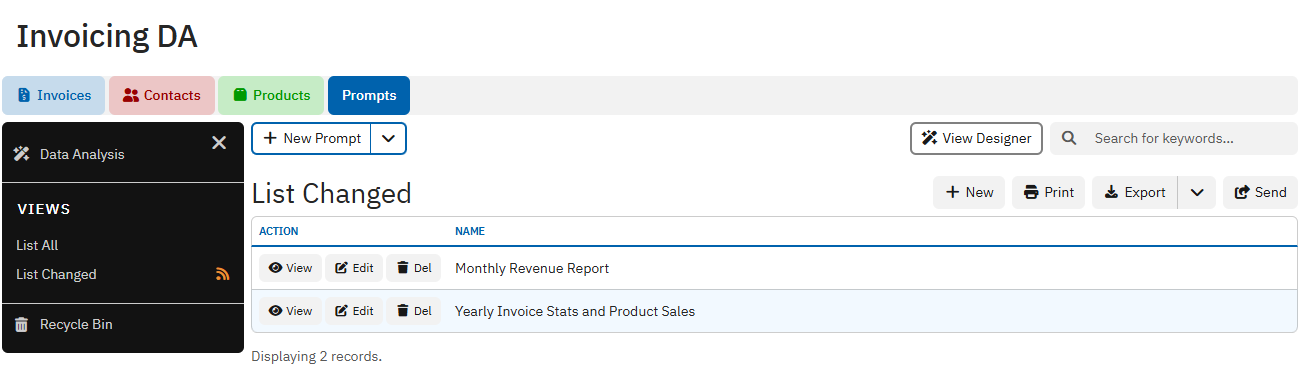
Add a new table called Prompts. It needs just two columns. Name holds a short, descriptive title, such as “Yearly Invoice Stats and Product Sales”. Prompt holds the full recipe text as a multi-line text column.
Choose names the way you’d name a saved report. The AI matches your request against the Name and the Prompt content. A clear name makes that match fast and reliable.
Step two: tell the AI to look there first
Open the Data Analysis resource files in setup and add a file for the prompts rule. In our Invoicing database, it lives at Data Analysis AI/Prompts.md. The instruction is short. It tells the AI to search the Prompts table before it handles any request.
If one prompt clearly matches, the AI uses it to structure the analysis and the answer. When several match, it picks the closest one. But if nothing fits, it carries on with a normal analysis. The instruction also tells the AI to treat saved prompts as internal guidance. It won’t dump the prompt text back at you unless you ask for it.
Add the text below as a Data Analysis resource file in your database. Make sure a Prompts table with Name and Prompt columns exists first.
Before handling any user request, first search the Prompts table for records whose Name and/or Prompt content is relevant to the request.

If a clearly matching prompt is found, use it as guidance for structuring the analysis and response.

If multiple prompts are relevant, prefer the one with the closest semantic match to the user's intent.

If no suitable prompt is found, continue with standard TeamDesk data analysis using only the available registered functions.

Treat prompts in the Prompts table as reusable internal guidance, not as data to expose unless the user explicitly asks for them.
Step three: let the AI write the prompt for you
You don’t write these prompts by hand. You finish an analysis in Data Analysis the usual way, with all the back-and-forth it takes. Once the result looks right, you ask the AI to turn the whole conversation into a reusable prompt. Something like “Write a prompt that reproduces this analysis, so I can save it and run it again later” works well.
The AI already knows every correction you made along the way. So the prompt it writes captures them all. Our saved example lists the tables involved and how they link. It names the exact columns and the filters for paid, unpaid, and overdue invoices. It even mentions a Product Name lookup column that an earlier session had added to Items. That one line stops the AI from creating a duplicate column next time.
Copy that output into a new Prompts record, give it a name, and save.
What a good saved prompt contains
Our example produces two reports. Yearly Invoice Stats groups invoices by Due Date year. It counts invoices, totals Total Due, and splits paid from unpaid. Most Selling Products groups Items by Product Name. It sums units and sales and ranks products by units sold.
The prompt spells out the output for each report: a table, a short summary, and an optional chart. It fixes the sort order. It also carries TeamDesk-specific rules the AI learned the hard way. If grouped results get truncated, the AI must say so. If it limits a ranking, it must include proper ordering. It must reuse existing columns instead of creating new ones.
The prompt ends with a “Recipe used” section. The AI lists the tables, grouping, metrics, and filters behind the numbers. That makes each rerun easy to check and easy to trust.
Step four: run it with one line
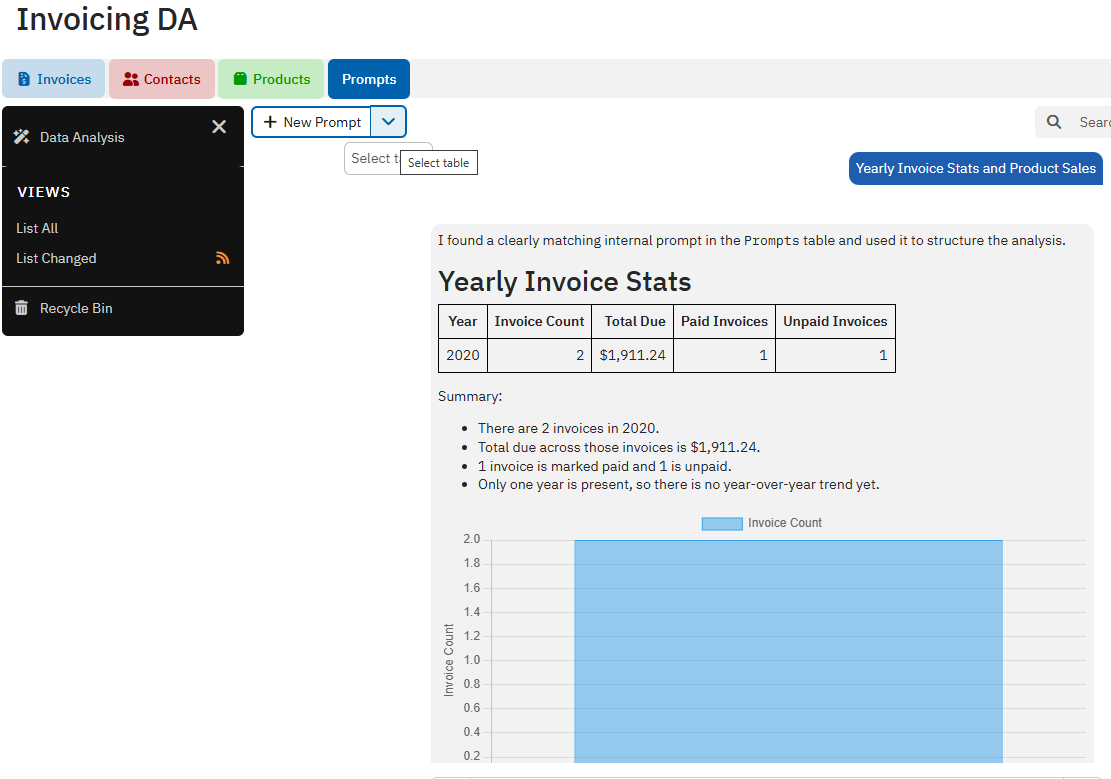
To reuse an analysis, open Data Analysis from the Prompts table. Then type the prompt’s name, for example:
Yearly Invoice Stats and Product Sales
That’s the whole request. The AI searches the Prompts table, finds the matching record, and follows it. You get both reports in the same structure as last time, built from today’s data. A colleague who has never seen the original chat gets exactly the same result.
Why this beats copying prompts around
You could keep prompts in a text file or a chat thread. But a TeamDesk table keeps them next to the data they describe. Everyone with access sees the same library. You can edit a prompt when the schema changes, and every future run picks up the fix. Over time, the Prompts table becomes a catalog of your team’s best analyses, ready to run on demand.