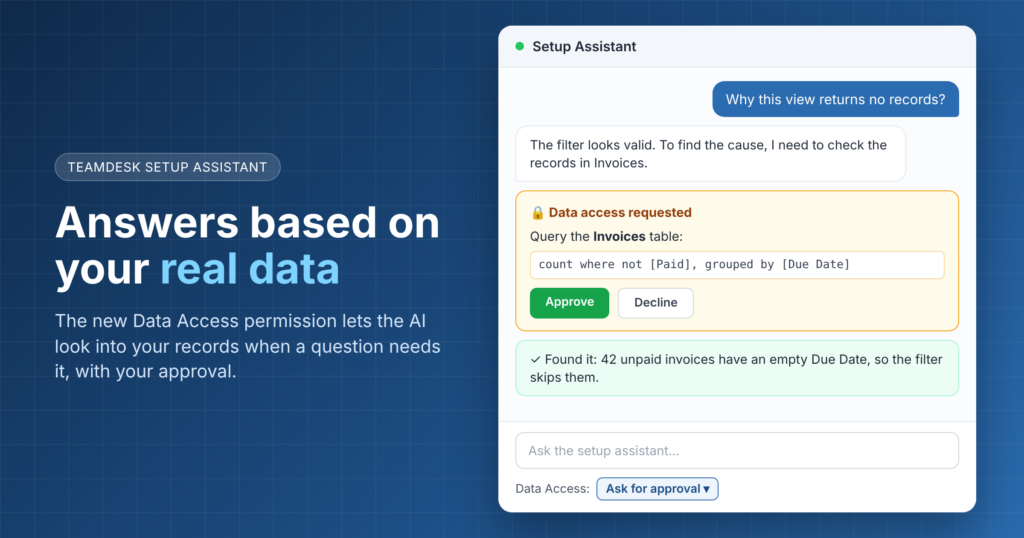
The answer usually hides in the data itself. A column is blank where you expected a value. A checkbox is ticked on records you thought were open. A text field holds “Open ” with a trailing space. Until now, the setup assistant couldn’t see any of that. It could only guess and ask you to check.
That changes today. The setup assistant can now look at the data in your database when it needs to. You stay in control through a new permission called Data Access.
What setup assistant data access adds
The setup assistant has always worked with your database structure. It reads tables, columns, views, formulas, and relationships. That covers most setup tasks, like adding a column or building a view.
Data access adds one more source of truth. When a question depends on the actual records, the assistant can now run a query and read the results. It uses what it finds to explain a problem or to check that a change works as intended.
The assistant doesn’t read your data on every request. It looks only when the question calls for it. Building a new table needs no data. Explaining why a view is empty does.
The new Data Access permission
You’ll find the new Data Access setting just below the message input field in the setup assistant. It controls whether, and how, the assistant may read your records.
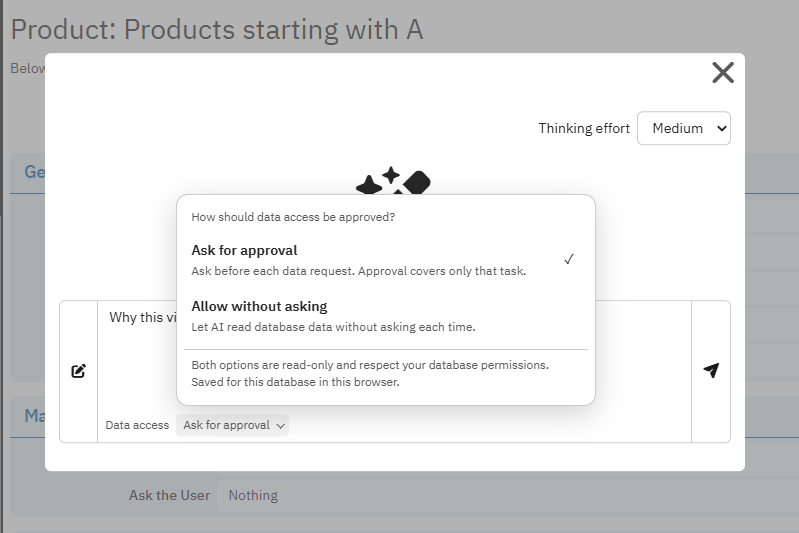
When you choose Ask for approval, the assistant asks you every time it wants to look at data. It tells you what it wants to query before it runs anything. You approve the request, and the assistant continues. You decline it, and the assistant works with the structure alone.
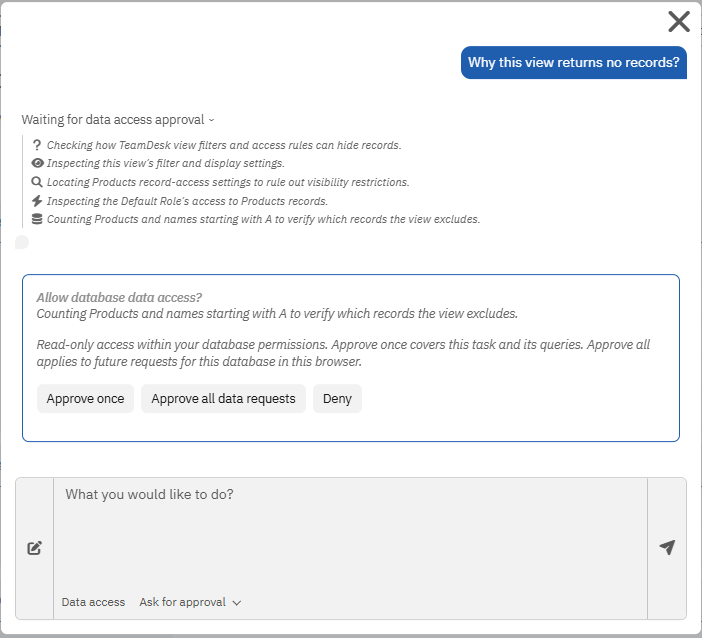
This mode suits most teams. You see each request in context. You know exactly why the assistant needs the data. Nothing gets read behind your back.
An example: why does this view return no records?
Let’s take a simple case. A database has a Products table and a view called Products starting with A. A user opens the view and sees nothing. So they open the setup assistant and ask:
Why this view returns no records?
Without data access
The assistant inspects the view. It sees a filter that requires Name starts with A. The filter is valid, and the Name column exists.
But the structure can’t tell the assistant what is in the table. Maybe no product names start with A. Maybe record access hides them. Maybe the table is simply empty. The assistant can only list these possibilities. The user has to check each one by hand.
With data access
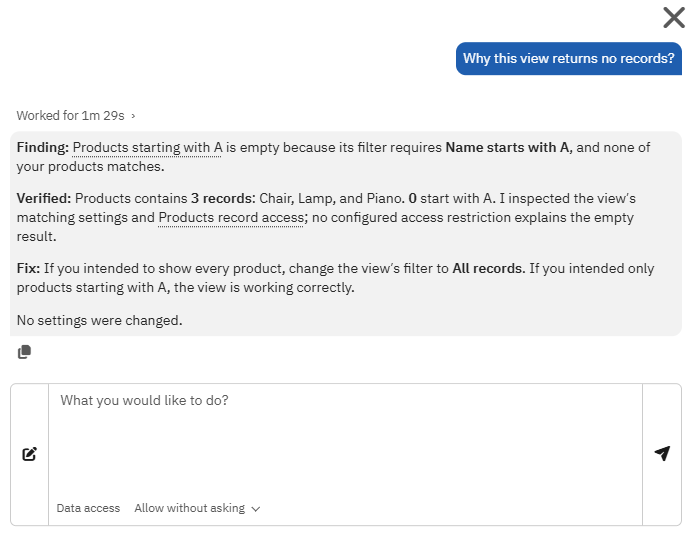
This time setup assistant data access is on, set to Allow without asking. The assistant reads the data it needs right away, with no approval step.
It checks the Products table and finds 3 records: Chair, Lamp, and Piano. None of them start with A. It also inspects the view’s matching settings and the record access rules for Products. No access restriction explains the empty result.
So the assistant gives a clear finding. The view is empty because its filter requires Name starts with A, and none of the products match. It also offers a fix for each intent. If you wanted to show every product, change the view’s filter to All records. If you wanted only products starting with A, the view already works correctly.
Notice the last line of the answer: “No settings were changed.” The assistant only read the data to answer the question. It left the database exactly as it was and let the user decide what to do next.
Why this makes the setup assistant more useful
Many setup problems are really data problems. Empty views, wrong totals, and unexpected summary results often come from the records, not the configuration. Without data access, the assistant could describe how things should work. With it, the assistant can see how they actually work.
Data access also helps after a change. Once the assistant fixes a view or a formula, it can query the data again to confirm the result. You get a fix that is checked against real records, not just a fix that looks correct.
You stay in control
Data access is a permission, not a default behavior you can’t see. With Ask for approval, every data request goes through you. You can decline any request and still get help based on the structure alone.
Try it the next time a view, a report, or a formula doesn’t behave as expected. Open the setup assistant, describe the problem, and let it look at the data when it asks.