
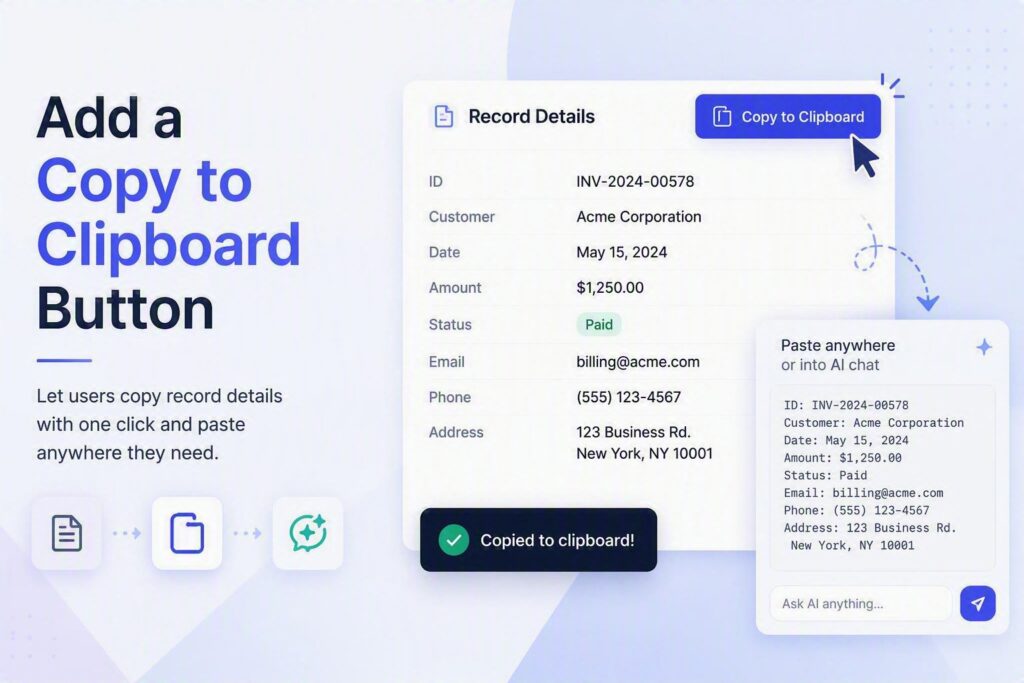
A single button fixes this. Add it to a TeamDesk form, and it gathers the fields you care about into one clean block of text. It grabs the file attachments too. Open your AI chat, paste, and ask your question. No retyping, no missed fields, no manual uploading/downloading files.
What the button actually copies
The button reads a fixed list of columns you choose ahead of time. It also picks up any file attachments on the record. It works whether the form shows the record in read-only preview mode or you’re mid-edit. TeamDesk renders those two modes differently under the hood, and the script handles both.
Each field becomes one line: the column’s label, a colon, then its value. Attachments work the same way. The value pairs a file name with a direct link. That means the AI chat — or you, later — can open it without going back to TeamDesk. The script skips empty fields entirely. That keeps the pasted text short and readable, instead of padding it with blank labels.
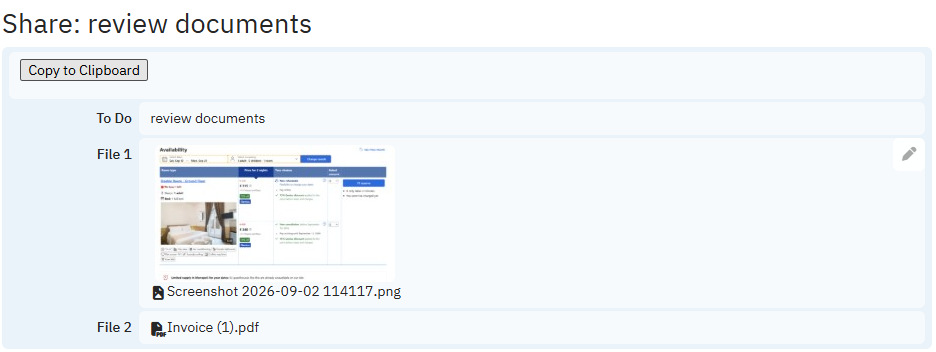
Why attachments need one setting changed first
TeamDesk’s attachment links normally only resolve for someone logged into that database. Paste one into an AI chat and the assistant can’t follow it. To get a link the outside world can open, turn on the allow public access property. Do that for the file attachment column itself — that’s the only setup step outside the button. It only applies to columns holding files you actually want to copy.

How the assistant builds it
You point the assistant at a table and list the columns you want included. From there, it does the setup work itself.
First, it inspects the table to find the real column IDs behind the names you gave it. TeamDesk’s internal IDs rarely match the display labels. Guessing them would break the button on the first click. Next, it opens the default form layout and adds one HTML Form Text block, set to HTML format. It places the block near the top of the form. That way, it’s the first thing you see, not something you scroll to find.
The block holds one button. It reads “Copy to Clipboard” unless the chosen columns suggest a better label. Next to it sits a small status message. It reads “Copied” on success, or “Nothing to copy” if every selected field is empty on that record.
Reading values the way TeamDesk actually renders them
The script doesn’t guess at page structure. It follows TeamDesk’s own new-UI rendering patterns for each field type. On the preview form, it prefers the visible rendered text over any hidden input. That’s the value TeamDesk chose to show you. On the edit form, it reads straight from the live input, textarea, or select control. For dropdowns, it takes the selected option’s text instead of its numeric value, so the copied text stays readable.
Attachments get their own handling on each mode. On preview, the script pulls the file name and link straight from the rendered attachment element. On edit, it checks the file input’s own metadata first. If that’s missing, it falls back to parsing the hidden field’s stored filename-and-ID string. Either way, it turns the result into a full, absolute URL. A relative link means nothing once it’s sitting outside TeamDesk in a chat window.
Getting the text onto your clipboard
Once the script reads every selected field, it assembles them into one multi-line block, one field per line. It writes that block to the clipboard using the browser’s standard clipboard API. Where that API isn’t available, it falls back to a hidden textarea and the older copy command. Either way, the button keeps working. The whole script runs inside TD.ready(), so it only fires once the form finishes loading.
Checking its own work
Before handing the form back, the assistant reopens the default form layout. It confirms the block is really there, in the right spot. It checks the script against the columns it inspected earlier, confirming every column ID it used is real. If a column you asked for turns out to be missing from the table, it stops. Then it tells you exactly which ones are missing, instead of quietly copying a shorter list than you expected.
The prompt to run it yourself
Copy everything below into a message to the setup assistant while viewing the table you want this on. Fill in your column names first. Make sure any file attachment column you list has allow public access turned on.
Add a clipboard copy button to the current TeamDesk table default form.
Columns to copy:
- [COLUMN NAME 1]
- [COLUMN NAME 2]
- [COLUMN NAME 3]
Do not ask me for page source. Use TeamDesk default new-UI field rendering patterns described below.
Goal:
Create one button on the current table default form that copies the selected current record values to the clipboard. The button must work on both preview and edit forms.
What you should inspect:
1. Inspect the current table setup.
2. Inspect the listed columns and determine their real TeamDesk column IDs.
3. Inspect the default form layout.
4. Add one HTML Form Text block to the default form.
5. Move the block near the top unless a better nearby position is clearly more appropriate.
6. Save and verify the result.
Implementation requirements:
- Use a Form Text block on the default form.
- Set format to HTML.
- Use JavaScript compatible with TeamDesk new UI.
- Wrap code in `TD.ready(() => { ... })`.
- Do not use jQuery unless absolutely necessary.
- Add one button labeled `Copy to Clipboard`, unless a better label based on the selected columns is obvious.
- Show a small inline status such as `Copied` or `Nothing to copy`.
- Use the real current TeamDesk column IDs you inspect from setup.
- Do not guess column IDs.
TeamDesk form rendering patterns to use:
A) General field ID pattern
- Each field uses a TeamDesk field name like `f_<column_id>`.
- The rendered field container/value area commonly uses IDs like:
- preview/edit cell container: `f_<column_id>_value`
- label container: `f_<column_id>_label`
B) Preview form pattern for regular fields
- The preview form commonly contains a rendered value container:
- `#f_<column_id>_value`
- For text-like fields, visible text may appear in elements such as:
- `#f_<column_id>_value .markup`
- or directly as text within the value container
- A hidden input may also exist:
- `input[type="hidden"][name="f_<column_id>"]`
- On preview, prefer:
1. visible rendered text from `.markup` if present
2. otherwise visible text content in the value container
3. otherwise hidden input value
C) Edit form pattern for regular fields
- Edit form controls commonly use `name="f_<column_id>"`.
- The editable control may be:
- `textarea[name="f_<column_id>"]`
- `input[name="f_<column_id>"]`
- `select[name="f_<column_id>"]`
- On edit, prefer:
1. textarea/select/input current value
2. if select, use selected option text when more user-friendly than numeric/internal value
- Trim whitespace.
- Preserve meaningful line breaks for multiline text where practical.
D) Preview form pattern for file attachment fields
- A preview attachment field commonly contains:
- `#f_<column_id>_value a[href*="attachment.aspx"]`
- The link text is usually the file name.
- The link href is the file URL.
- Convert the URL to an absolute URL if needed using `new URL(href, window.location.origin).href`.
E) Edit form pattern for file attachment fields
- An edit attachment field commonly contains:
- `input[type="file"][name="f_<column_id>"]`
- Existing file metadata may be available on that file input via attributes such as:
- `data-filename`
- `data-fileurl`
- There may also be a hidden input:
- `input[type="hidden"][name="f_<column_id>"]`
whose value may look like:
- `FileName.ext;1;GUID`
- For edit attachment extraction, use this priority:
1. if file input has `data-fileurl`, convert it to absolute URL with `new URL(dataFileUrl, window.location.origin).href`
2. use `data-filename` as file name if available
3. otherwise inspect hidden input value
4. if hidden input contains semicolon-separated metadata in pattern `filename;...;guid`, extract:
- filename = first segment
- guid = third segment
- fid = numeric part of the field name `f_<column_id>`
- construct URL as:
`${window.location.origin}/secure/db/<APP_ID>/attachment.aspx?fid=<column_id>&guid=<guid>`
5. if no metadata exists, treat the attachment as empty
F) Application ID pattern
- Read the TeamDesk application ID from the page when needed.
- Preferred source: document.documentElement attribute `data-api-config`, which contains JSON-like config including `applicationId`.
- If needed, parse that config to get the app/database ID for attachment URL construction.
G) User-visible value preference
- Prefer readable displayed values over internal IDs.
- For user/reference/select fields, prefer visible text when available.
- Do not copy internal numeric IDs unless no user-visible value exists.
Output format:
- Build a readable multi-line text block.
- Use one line per non-empty field.
- Format:
[Column Label]: [Value]
- For attachments, when both are available:
[Column Label]: [File Name] - [Absolute URL]
- Skip empty values unless all selected fields are empty.
- If all selected fields are empty, show `Nothing to copy` and do not copy blank text.
Clipboard behavior:
- Use `navigator.clipboard.writeText(...)` when available.
- Provide a textarea fallback using `document.execCommand('copy')` if needed.
- After success, show `Copied`.
Verification after saving:
- Reopen the default form layout.
- Confirm the HTML text block exists.
- Confirm it is placed correctly.
- Confirm the script references the real current TeamDesk column IDs.
- Confirm the script uses the rendering patterns above for preview/edit extraction.
- If any listed column is missing, stop and report exactly which ones are missing.
Final response:
- Keep it brief.
- State what was added.
- State what was verified.
- Include links to:
- current table setup
- default form layout
- added/edited form text block
Use the simplest reliable implementation that fits the current TeamDesk setup.
Update: as per our investigation driven by Jorge Solá we have concluded that so far only ChatGPT is able to access the files via links.


Thank you, Kateryna, for sharing your ideas and these prompts to build all kinds of nice things with AI.
I’m just concerned about checking the “Allow public access” checkbox for attachments.
Granted, you usually access an attachment through a URL that contains a guid parameter, which is impossible to guess. But you can also access it by replacing the guid parameter with a simple id= parameter followed by the RecordId, which is very easy to guess. So by turning on the “Allow public access” property, you are inviting unwanted eyes to see the contents of all the files in your attachment columns. Please correct me if I’m wrong.
I wonder if a safer approach would be to send selected documents to whatever AI service you are using, as opposed to making all your documents visible.
Hi Jorge,
When Allow public access is enabled, the system always generates a public link to the attachment using a GUID. This GUID is not based on the Record ID and is not something that can be easily guessed.
Regarding the alternative URL using the id= parameter followed by the Record ID: that URL will always require user authentication. Therefore, an AI service or an anonymous user would not be able to access the attachment through that method.
So enabling Allow public access does not make attachments accessible simply by knowing or guessing the Record ID. The public access is specifically provided through the generated GUID-based URL.