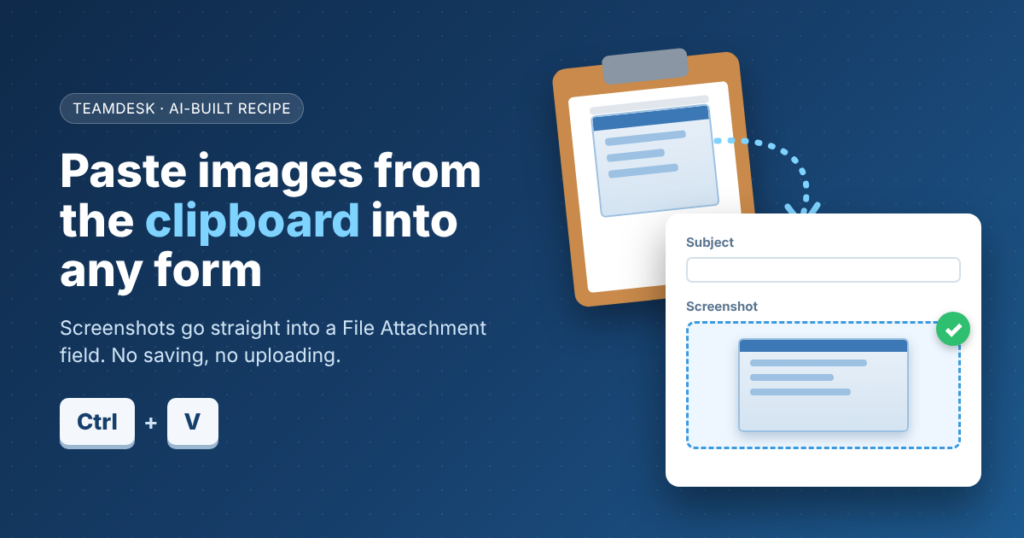
So you open an image editor, paste, save the file, find it again, and upload it. Then you delete the stray file from your desktop. Five steps for something that should take one. A customer recently asked us exactly this. Could they simply paste a picture into a field? TeamDesk can already show an attachment as an image with Display as Image. The missing piece was getting the picture in without saving it first.
A single fix: paste image from clipboard
The AI setup assistant adds two small controls under your File Attachment field. The first is a button that lets you paste an image from the clipboard with one click. The second is a paste area. Click it, press Ctrl+V or Command+V, and the screenshot lands in the field. You then save the record as usual. The image behaves like any other uploaded attachment, so Display as Image keeps working.

What you need before you start
You need a File Attachment column on the table. If you want the picture to show inline, turn on Display as Image for that column yourself. The assistant does not change that setting. It also does not touch any other column or form setting.
How it works
The idea is simple. A small script sits in an HTML Text block on the table’s form. It waits for the form to load, then adds the paste controls next to the file input of your attachment column. On a read-only view, the controls stay hidden.
Browsers give you two ways to paste an image from the clipboard. The modern clipboard API lets a button read the clipboard on demand. The browser may ask for permission the first time. The classic paste event works without that permission and fires whenever you press Ctrl+V. Offering both covers almost every browser.
A clipboard image arrives as raw data, without a file name. The script turns it into a named file and places it in the attachment input. The form then treats it like a file you picked by hand. This step is a browser workaround, not an official TeamDesk feature. Current browsers handle it well, but test it on your own setup.
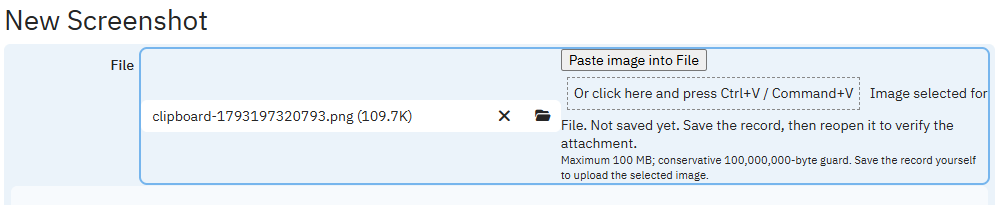
Built-in safeguards
The script asks before it replaces a file already in the field. It rejects very large images and shows clear messages when something goes wrong. It never saves the record for you and sends nothing to external services. You stay in control of when the change goes in.
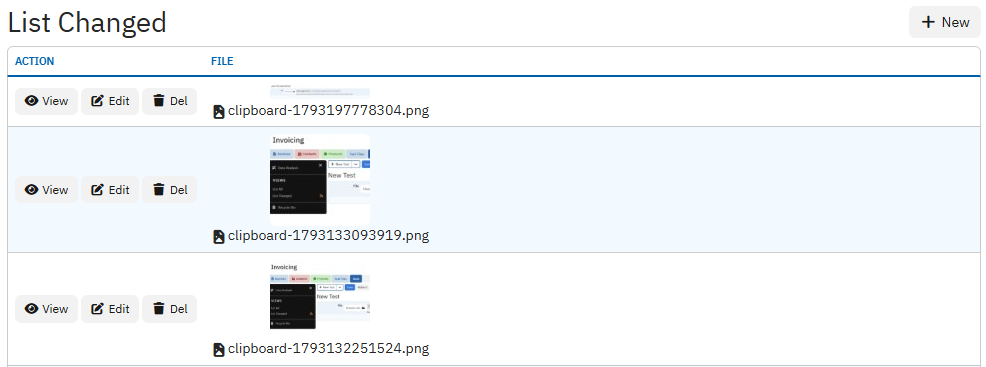
To test it, paste an image from the clipboard, save the record, and reopen it. If the picture is still there, everything works.
The prompt to run it yourself
Open the “Ask a Question” AI setup assistant in your TeamDesk database. Replace [TABLE] and [COLUMN] with your table name and File Attachment column name, then send the prompt below.
Add clipboard-image controls to table “[TABLE]”, File Attachment column “[COLUMN]”, using an HTML Text block on its default form.
Verify TeamDesk documentation; inspect the column, form layout/behavior, and discover the actual column ID. Reuse an equivalent block.

Initialize with TD.ready(init) and a DOM-ready fallback. When the file input exists and is editable, append controls to input.parentNode and unhide them. Do not gate initialization on computed styles or input dimensions.

Add a type="button" labeled "Paste image into [COLUMN]" using navigator.clipboard.read(), plus a focusable Ctrl+V / Command+V paste area using clipboardData. Prefer PNG.

Convert the image Blob to a named File; assign via DataTransfer and dispatch bubbling input and change events.

Confirm before replacing an existing or newly selected attachment. Reject images over 100,000,000 bytes; show clear clipboard, permission, API, and selection errors.

Do not autosave, use external services, or change unrelated settings.

Save and reopen the block to verify code and HTML format. Provide its setup link. Identify file-input assignment as a browser workaround; request testing: paste → save → reopen.