
Edit Layout
The form layout editor allows you to organize fields into sections, arrange their positions, and customize how they are displayed on a form.
Organize Form Elements
You can arrange elements in the form layout by dragging and dropping them into the desired positions. You can also reorder elements by placing them before or after other elements in the layout.
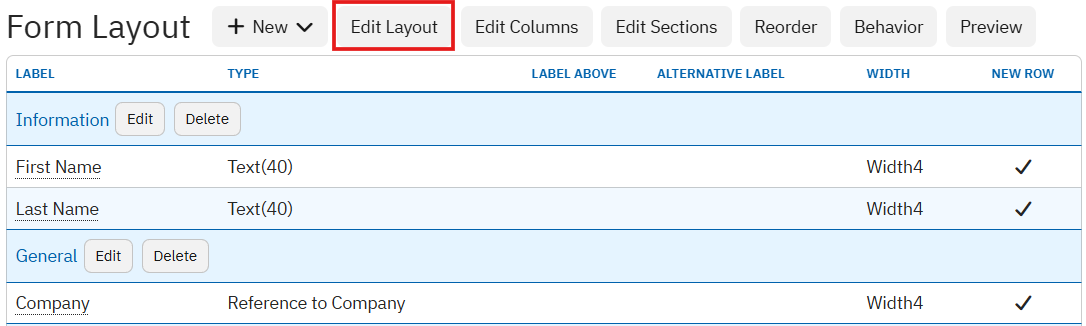
Click the Edit Layout button at the top of the form layout.
The top row shows the items that can be added to the form:
- New section
- New text
- Columns, that are not added to the form
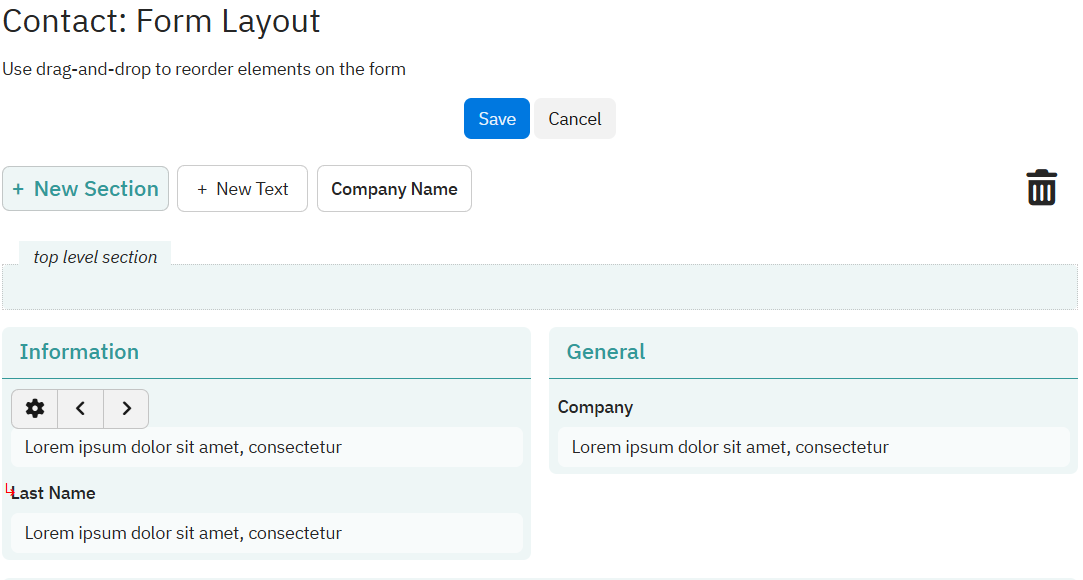
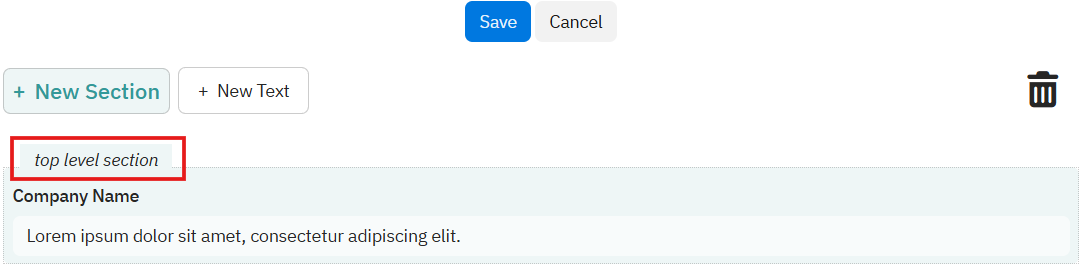
Top Level Section is a default section that is always displayed on top and does not contain a label. Drag and drop columns or an entire section here to be displayed at the top of the form.
New Section
To create a new section, drag and drop the New Section element into the form layout area.
Hover over the section and adjust section width using the arrows: click the left arrow to decrease the width or the right arrow to increase it.
Click the gear icon to open its properties, where you can specify the section name and color. If you want to change the color of the section, click on the color icon to choose the color from the opened palette.
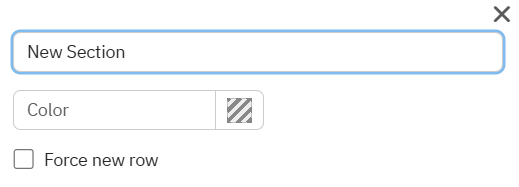
- Force New Row
- Places the section at the beginning of a new row.
New Text
To add text to the form, drag and drop the New Text element into the form layout area.
Hover over the text area and adjust its width using the arrows: click the left arrow to decrease the width or the right arrow to increase it.
Click the gear icon to open its properties and configure the text.
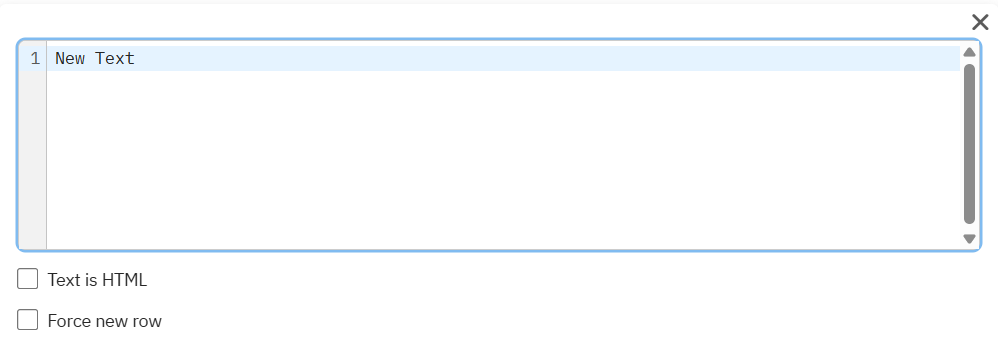
- Text is HTML
- Enable this option to interpret the text content as HTML markup.
- Force New Row
- Places the text at the beginning of a new row.
Column Properties
Hover over the column and adjust column width using the arrows: click the left arrow to decrease the width or the right arrow to increase it.
Click the gear icon. In the pop-up window, specify an alternative label for the selected column.
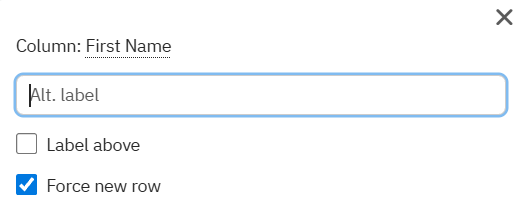
- Label Above
- Displays the field label above the field instead of beside it.
- Force New Row
- Places the column at the beginning of a new row.
To delete a form element (section, text, or column), drag and drop it onto the bin icon. Deleting an entire section removes all its columns from the form. Once a section is deleted, it cannot be undone unless you cancel the changes.
Note: Removing a column from the form layout does not delete the column from the database.
When editing the layout is finished, click Save.